Separate Browser Profiles for Work, Personal and Shopping: Why They Work
One browser, several separate lives. How profiles keep logins and cookies apart, what they do not protect, and how to set them up well.

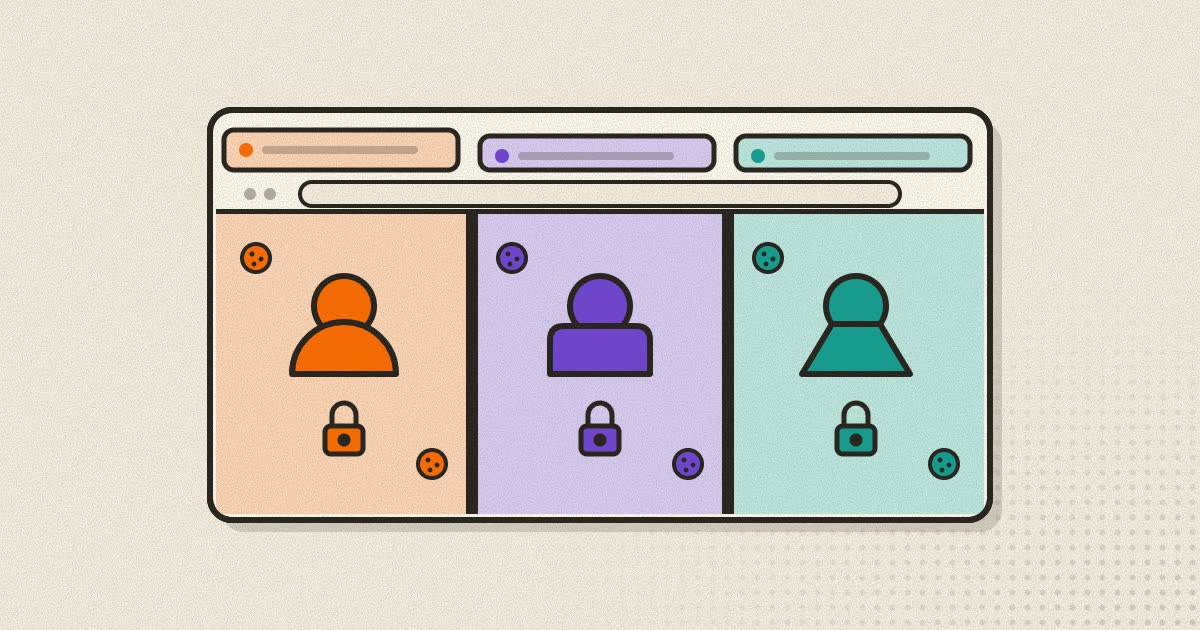
Most people run their whole online life through one browser window. Work email sits next to personal email, the shopping site remembers last week's search, and every service you are signed into shares the same store of cookies. Browser profiles split that into separate spaces, each with its own logins, history and saved data. It is one of the simplest improvements you can make to both privacy and daily sanity, and every major browser already has it.
What a profile actually separates
A profile is a separate set of browser data kept in its own folder on your device. Google's help page for Chrome sums it up in one line: "With profiles, you can keep all your Chrome info separate, like bookmarks, history, passwords, and other settings."
Apple's documentation for Safari, which added profiles in Safari 17, is more specific. Each profile has its own history, cookies, website data, extensions, Tab Groups and favorites. Extensions are installed once but switched on or off per profile, and new profiles start with them off. When you delete a profile, its history, cookies and website data go with it.
The details vary between browsers, but the core is the same everywhere: cookies and site storage in one profile are invisible to the others. That one property is what makes profiles useful.
Why cookies make this matter
Cookies are small pieces of data a site asks your browser to store and send back with later requests. The cookie standard, RFC 6265, ties each cookie to the site that set it. That is how a site keeps you logged in: it hands your browser a session cookie, and every request after that carries the cookie back.
Inside one profile, this means every tab that opens a given site shares the same login. If you are signed into one account, you are signed in everywhere in that profile. Want to use a second account on the same service at the same time? Most sites either do not allow it or make you juggle an account switcher.
What browsers already do for third-party cookies
For years, the bigger privacy problem was third-party cookies. An advertising network embedded on thousands of sites could set one cookie and read it back on every one of those sites, building a picture of your browsing.
Browsers have since cut this down with storage partitioning. MDN explains that Firefox now "double-keys all client-side state by the origin of the resource being loaded and by the top-level site," so an embedded tracker gets a different storage area on each website it appears on. Mozilla turned this on for all desktop Firefox users in June 2022 under the name Total Cookie Protection, describing it as a separate "cookie jar" for every website you visit.
Partitioning is a real improvement, but it solves a different problem. It stops one site's embedded tracker from following you to another site. It does nothing about the cookies of the sites you visit directly, which is exactly where your logins, carts and recommendations live. If you want your work account and your personal account kept apart, or your gift shopping kept off the family computer's main profile, partitioning will not do it. Separate profiles will.
Profiles, private windows and containers
Three features get confused with each other. They solve different problems.
| Private window | Firefox container | Profile | |
|---|---|---|---|
| Separate cookies and site data | Yes, temporary | Yes | Yes |
| Kept after you close it | No | Yes | Yes |
| Separate history | Not saved at all | No, shared | Yes |
| Separate extensions and settings | No | No, shared | Yes |
| Good for | A one-off session you want forgotten | Several accounts side by side in one window | Long-term separate identities |
A private window is a throwaway profile. It is perfect for checking something without leaving a trace in your main history, but you cannot keep a login in it, because everything is discarded when you close it.
Firefox's Multi-Account Containers extension gives each container its own storage, such as cookies and localStorage, so tabs in different containers can be signed into different accounts on the same site. All containers still live inside one Firefox profile, so bookmarks, extensions and the history list are shared.
A profile is the most complete of the three. It keeps nearly everything apart, and it stays that way until you delete it.
Where profiles earn their keep
Work and personal accounts
This is the classic case. Your work email, calendar and documents live in one profile. Your personal accounts live in another. You never send a work file from the wrong account, your personal bookmarks do not end up in front of a colleague during a screen share, and logging out of one does not log you out of the other.
Shopping and research
Shopping sites and their partners are among the heaviest users of tracking and personalization. Keeping that activity in its own profile means the recommendations and ads that follow your shopping stay in that profile, instead of appearing in the browser you use for everything else.
Shared devices
On a family tablet or laptop, a profile per person keeps each person's accounts, history and saved passwords out of the others' way. It is not a security wall against someone determined, but it prevents the everyday accidents.
Clients and side projects
Freelancers and agency staff often keep one profile per client, each signed into that client's accounts. Switching clients means switching profiles, not signing out of a dozen services.
Testing and troubleshooting
A clean profile with no extensions and no saved data is the quickest way to tell whether a broken site is broken for everyone or only for your setup.
Pairing a profile with its own network settings
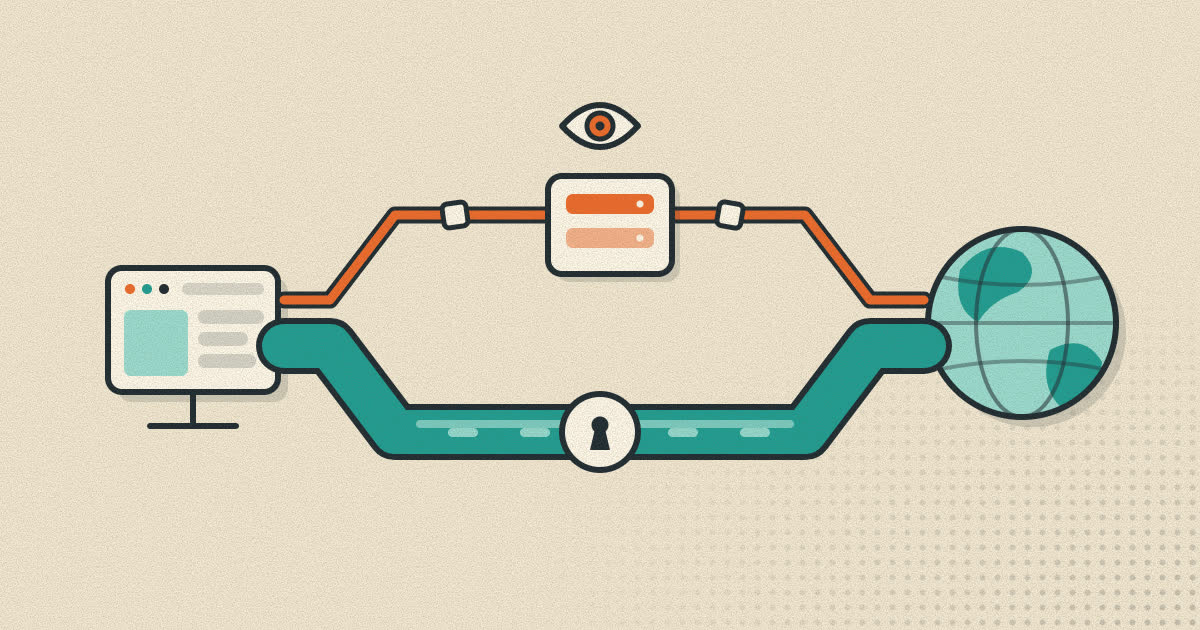
Some browsers let a profile carry its own proxy or user agent. That turns a profile into a complete separate identity: its own logins, its own exit IP address and its own reported device, while your other profiles stay on your normal connection.
A sample setup
Here is a layout that works for a lot of people, to make the idea concrete.
| Profile | Signed into | Kept here | Left out |
|---|---|---|---|
| Work | Work email, calendar, company tools | Work bookmarks, the password manager your employer requires | Personal social accounts, personal extensions |
| Personal | Personal email, banking, family photos | Everyday bookmarks, your own password manager | Shopping sites, random sign-ups |
| Shopping and sign-ups | Store accounts, newsletters, coupon sites | Order tracking pages, wish lists | Email and banking |
The rule of thumb is that each profile has one job. When you sign up for something new, ask which profile it belongs to before you create the account. That one habit does most of the work.
Profiles and sync
In browsers with a sync account, sync is usually tied to the profile, not to the whole browser. That is a feature. Your work profile can sync to a work account and your personal profile to a personal one, so bookmarks and passwords never cross between them, even on another computer.
It also means a mistake carries over. If you sign your personal sync account into the work profile, your personal passwords and history arrive there on every device you use. Check which account each profile is synced to when you set it up, and again after reinstalling.
What profiles do not do
Profiles separate stored data. They do not change the device underneath, and that has consequences.
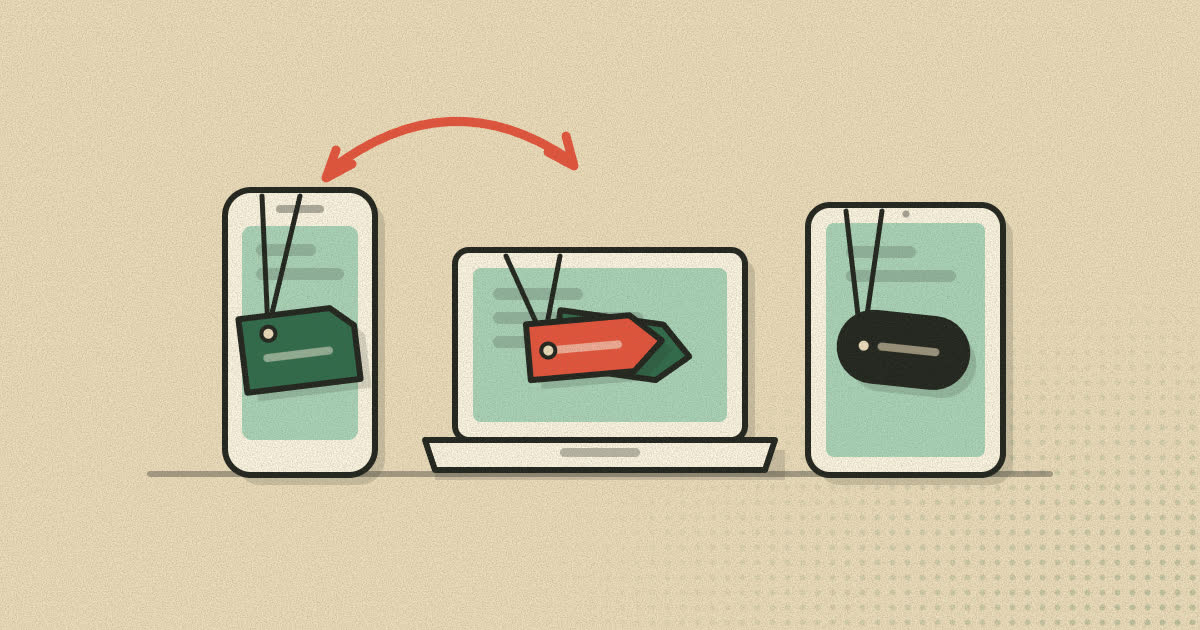
- Your fingerprint is the same. Every profile on a device shares the same screen, graphics hardware, fonts and time zone. A site that uses browser fingerprinting could recognize two profiles as the same machine.
- Your IP address is the same, unless you give a profile its own proxy or route it through a VPN.
- They are not a security boundary. Malware on the device, or anyone with access to your user account, can reach every profile's files.
- They do not lock by default. In most browsers anyone using the computer can open any profile. Some browsers add a lock, but check before you rely on it.
Setting them up well
- Give each profile a clear name and color. The point is to always know which one you are in. A colored icon in the toolbar is enough.
- Start with two or three. Work, personal and one for shopping or experiments covers most people. Too many and you will stop using them consistently.
- Keep extensions minimal in each. An extension you need for work does not have to run while you shop.
- Lock the sensitive one. If your browser supports a lock per profile, use it for the profile that holds banking or work accounts.
- Decide where links open. Links from other apps usually open in the last used profile. Know which one that is.
Mistakes that undo the benefit
Signing in from the wrong profile
The most common slip is clicking a link from an email or chat app, having it open in whichever profile was used last, and signing in there without noticing. The account is now in two profiles. Glance at the profile color before you type a password.
Saving passwords everywhere
When the browser offers to save a password, it saves it into the current profile. Saving the same password in several profiles spreads it around and defeats part of the separation. Save each login once, in the profile it belongs to.
Making too many
A profile per website is not organization, it is clutter. If you have to think about which profile to open, you will eventually stop opening the right one.
What about phones?
Profiles grew up as a desktop feature, and on phones the picture is patchier. Mobile browsers vary a lot here: some have no profiles at all, some offer only a separate private mode, and a few support several full profiles. Many people fall back on using two different browser apps, one for work and one for personal use, which gives the same separation at the cost of two sets of settings to maintain. If your phone is where most of your browsing happens, check what your mobile browser actually supports before building a habit around it.
Cleaning up
Deleting a profile is the cleanest reset a browser offers. Google's help page notes that when you delete a Chrome profile, "the profile's bookmarks, history, passwords, and other settings are erased from the computer." Apple says deleting a Safari profile removes its history, cookies and website data. That makes a throwaway profile useful for short projects: use it for a few weeks, export anything you need to keep, then delete it and everything it collected goes with it.
A note on Rapid+
Profiles are at the center of Rapid+ Browser. Each profile has its own tabs, logins, cookies, history, bookmarks, saved passwords, proxy and settings, and you can switch between them in one tap. On Android a profile can be locked with your fingerprint or face, and on Windows with a PIN. The multiple profiles page has the details.
Sources
- Google Chrome Help: Manage Chrome with multiple profiles
- Apple Support: Use profiles in Safari on Mac
- Mozilla Support: Multi-Account Containers
- RFC 6265: HTTP State Management Mechanism (cookies)
- MDN: State Partitioning
- Mozilla Blog: Firefox rolls out Total Cookie Protection by default to all users worldwide (June 2022)
Written by the Rapid+ Team. We build Rapid+ Browser for Android and Windows. Spotted a mistake or have a question? Email us at admin@rapidplusbrowser.online.